How to Watch IPTV on VLC Player (Full 2025 Setup Guide)
VLC Media Player is one of the most versatile media players available, and it handles IPTV streams surprisingly well. This guide walks you through every step of using IPTV on VLC Player-from pasting your first playlist URL to fixing buffering, recording channels, and knowing when a dedicated app might serve you better.
Quick start: play an IPTV playlist in VLC Media Player in under 2 minutes
VLC Player can open almost any IPTV playlist on Windows, macOS, and Linux without installing extra apps or plugins. VLC can open M3U links without a special IPTV app, which makes it the fastest way to test whether your streams actually work.
Here is the quickest path from launch to live TV:
-
Open VLC Media Player on your computer.
-
Press Ctrl+N (or go to Media → Open Network Stream).
-
Paste your IPTV playlist URL into the network URL box.
-
Click Play.
-
Press Ctrl+L to open the playlist panel and see all available channels.
VLC can open M3U links in three clicks. That is genuinely all it takes to start watching.
An IPTV playlist is a plain-text file-usually in M3U or M3U8 format-containing channel names, metadata, and stream URLs. VLC treats it like any other playlist: it loads every entry and lets you switch between them.
A few things to keep in mind from the start. BestIPTV.blog is an educational resource and does not host or sell IPTV streams. Readers should only use legal IPTV sources. Also, VLC does not provide a TV-style program guide, so this quick setup works best for simple channel zapping rather than a full-time cable replacement.
VLC Media Player does not offer built-in channels or subscription services. You always need to supply your own playlist from a provider you trust.
What you need before using IPTV on VLC Player
Before you open your first stream, make sure you have these basics covered:
-
VLC Media Player 3.0.x or newer installed from the official videolan.org site.
-
A stable broadband connection-roughly 15–25 Mbps is comfortable for multiple HD streams.
-
At least one IPTV playlist, either as a URL or a downloaded file.
IPTV can be accessed through M3U playlist links or files. Here is the difference between the formats you might receive from a provider:
|
Format |
What it looks like |
Auto-updates? |
|---|---|---|
|
Remote M3U/M3U8 URL |
A web link starting with http:// or https:// |
Yes, every time you open it |
|
Downloaded .m3u file |
A file saved on your PC or phone |
No-it is a snapshot |
|
Xtream Codes login |
Server address, username, password |
Yes, once converted to URL |
Legitimate IPTV providers ensure authorized content distribution, and using reputable IPTV services reduces risks associated with streaming. Avoid suspicious “all channels free forever” offers. If something seems too good to be true, it usually is.
BestIPTV.blog publishes separate guides on finding legal, public IPTV playlists and evaluating paid IPTV services.
Install and update VLC Media Player on Windows, Mac, and Linux
Using the official VLC download from VideoLAN matters for two reasons: security and up-to-date codec support. Third-party download sites sometimes bundle unwanted software or ship outdated versions that struggle with modern streaming formats used by IPTV providers.
-
Windows: Visit videolan.org, pick the Windows installer, run setup, and allow firewall access when prompted. That firewall prompt is important-VLC needs network permission to receive IPTV streams.
-
macOS: Download the DMG, drag VLC into your Applications folder. If macOS blocks it, right-click the app and choose Open to bypass the Gatekeeper warning.
-
Linux: Install through your distribution’s package manager. On Debian/Ubuntu run apt install vlc, on Fedora use dnf install vlc. Note that feature availability can differ slightly depending on the build.
Before troubleshooting any IPTV issues, check for updates. On Windows go to Help → Check for Updates. On Mac go to VLC → Check for Updates. Outdated versions may lack HLS demuxer improvements that directly affect IPTV playback.

Open an IPTV playlist link (M3U / M3U8 URL) in VLC
Most IPTV providers and many free sources give you a URL ending in .m3u or .m3u8 that VLC Player can stream directly-no download required. M3U files and URLs are commonly provided by IPTV service providers as the standard delivery method.
Follow these steps on desktop:
-
Launch VLC Media Player.
-
Go to Media → Open Network Stream (or press Ctrl+N on Windows/Linux; on macOS use File → Open Network).
-
Paste the full IPTV playlist URL into the network URL box.
-
Click Play. The first channel in the playlist begins streaming.
-
Press Ctrl+L (or View → Playlist, or Window → Playlist on macOS) to open the playlist panel showing every channel.
-
Double-click any channel name to switch to it.
M3U8 streams are often HTTP Live Streaming (HLS) format. These work well in VLC and are common for IPTV sports and live TV broadcasts.
If nothing plays, double-check that you pasted the entire URL from your provider, including any query parameters like username and password. A truncated URL is the most common error at this stage.
VLC only plays the IPTV playlist you supply. BestIPTV.blog does not embed any private or paid playlists.
Open a downloaded IPTV playlist file in VLC (local .m3u / .m3u8)
Some IPTV services provide a downloadable IPTV playlist file instead of-or alongside-a URL. This is typically a .m3u or .m3u8 file saved to your computer.
-
Double-click the file. On most systems, VLC Player becomes the default app for .m3u files, so double-clicking opens VLC and loads all channels automatically.
-
Open manually inside VLC. Use Media → Open File, browse to the playlist, select it, and click Open. Channels appear in the playlist panel.
One important caveat: local IPTV playlist files are snapshots. They do not auto-update when your provider changes channels or stream URLs. Re-download updated playlists periodically to keep your channel list current.
You can save your playlist in VLC using Ctrl+Y (Media → Save Playlist to File) so you can reopen it quickly without searching through folders.
Use Xtream Codes IPTV details with VLC Player
Some IPTV providers do not hand you a ready-made playlist URL. Instead, they give you a panel server address, username, and password in Xtream Codes format.
You can convert these credentials into a usable URL by following this template:
http://SERVER:PORT/get.php?username=USER&password=PASS&type=m3u_plus&output=ts
Replace SERVER, PORT, USER, and PASS with the values your provider gave you. Then paste the resulting URL into VLC’s Open Network Stream dialog just like any other playlist link.
If VLC struggles with certain channels, try changing output=ts to output=m3u8. Many IPTV servers offer both transport stream and HLS variants, and switching can fix playback errors on specific channels.
For users uncomfortable building URLs by hand, some reputable online tools can help assemble the link-but be cautious about where you paste login details. Treat your username and password like any other credential and avoid sharing them.
BestIPTV.blog does not operate Xtream Codes panels and recommends readers keep their IPTV account credentials private.
Navigate channels and control IPTV playback in VLC
Once your playlist is loaded, VLC works as a basic IPTV player. Here is how to get around:
-
Toggle the playlist panel with Ctrl+L (or View → Playlist). All IPTV channels appear as a simple flat list-VLC does not sort them into categories like Sports, Movies, or News.
-
Search within long playlists by typing in the search/filter box at the top of the playlist panel. Type “BBC”, “Sports”, or any keyword to find matching channel names quickly.
-
Useful hotkeys:
-
Double-click a channel to play it
-
N – next channel
-
P – previous channel
-
Spacebar – pause/resume (if the stream format supports pausing)
-
F – toggle fullscreen
-
VLC does not natively show an EPG (programme guide) for IPTV. You will only see whatever label your provider embedded in the playlist metadata-nothing more.
To keep things manageable, consider removing dead or unwanted channels from your playlist and saving a custom version with only the channels you actually watch.
Fix buffering and freezing IPTV streams in VLC
IPTV buffering can come from your connection, the IPTV server, or VLC’s own settings. The good news is that VLC’s default settings are the easiest fix to try first.
VLC holds only about one second of video ahead by default. That roughly 1000 ms buffer is often too low for live IPTV streams, especially during busy times like major sports events when servers are under load.
Per-stream fix:
-
Go to Media → Open Network Stream.
-
Click Show more options at the bottom of the dialog.
-
Increase the Caching value to around 3000–5000 ms.
-
Paste your URL and click Play.
Global fix (applies to all streams):
-
Go to Tools → Preferences.
-
At the bottom-left, select All to show advanced settings.
-
Navigate to Input / Codecs.
-
Find Network caching (ms) and set it to 3000–5000 ms.
-
Save and restart VLC.
Three to five seconds of buffering is ideal for smooth playback. Increase VLC’s network caching to 3000–5000 ms to reduce buffering significantly.
Setting the default caching policy to higher latency can also help reduce stuttering on consistently choppy streams. If you find that channel switching feels sluggish after raising the buffer, try a compromise value around 2000–3000 ms.
If buffering persists even with higher caching, the server may be overloaded or your internet route to it may be congested. VLC Media Player itself is rarely the bottleneck in that scenario.
Basic network checks that help:
-
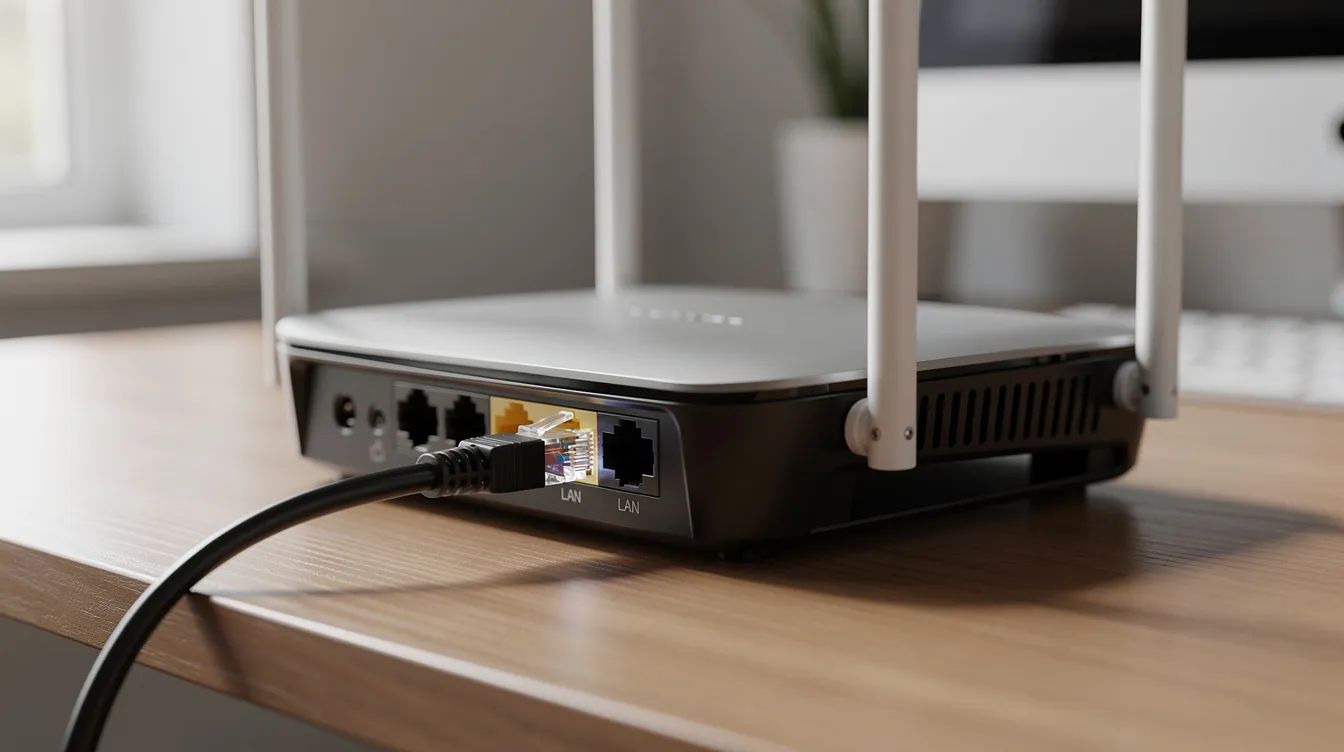
Use wired Ethernet instead of Wi-Fi when possible
-
Pause other heavy downloads or uploads on your network
-
Test your internet speed on the same device to rule out bandwidth issues
Record IPTV streams and timeshift with VLC
VLC Player can record many IPTV streams locally. Whether recording is appropriate depends on the content’s rights and your local laws-always respect copyright.
To enable recording controls:
-
Go to View → Advanced Controls. A row of extra buttons appears, including a red Record button.
-
Start playing a live IPTV channel.
-
Click the Record button to begin recording. Click it again to stop.
-
Find the resulting file in your default Videos (Windows) or Movies (macOS) folder.
You can record live channels in VLC without re-encoding. VLC typically saves in .ts or .mp4 format, keeping quality close to the original stream. File sizes can be large because there is no compression step.
For a basic timeshift experience, start recording, pause playback, then resume and skip within the local recording. This is not a full DVR-you cannot schedule recordings or access catch-up TV-but it works in a pinch for rewinding a goal or replaying a scene.
Recording may be restricted or illegal for certain IPTV content in some jurisdictions. Users are responsible for respecting copyright law in their region.
Use VLC as an IPTV player on Android and iPhone
VLC’s mobile apps share the same core streaming engine as the desktop version, but the user experience differs significantly when watching IPTV.
Android:
-
Open VLC and tap the three-line menu.
-
Select Stream (or New stream).
-
Paste your IPTV playlist or channel URL and tap the play icon.
-
For local .m3u files, browse your device storage through VLC’s file manager.
iPhone and iPad:
-
Open VLC and go to the Network tab.
-
Tap Open Network Stream and paste the IPTV playlist URL.
-
Channel browsing is more limited than on desktop-scrolling through hundreds of entries on a small screen gets tedious quickly.
Large IPTV playlists are harder to manage on a phone or tablet. There is no grid EPG, no remote-friendly channel zapper, and editing playlists is cumbersome on touchscreens. Background playback can also be interrupted when switching apps, especially on iOS.
Position VLC’s mobile apps as suitable for quick test viewing of IPTV channels or occasional watching. For daily TV use on phones and tablets, dedicated IPTV apps generally provide a better experience.
The quality and reliability of IPTV streams on mobile still depend entirely on the playlist provider and the user’s connection-VLC is just the player.

When VLC is not the best IPTV solution (and what to consider instead)
VLC functions well for simple streaming but lacks features of dedicated IPTV applications. After using it for a while, most daily IPTV viewers run into the same frustrations:
-
Flat, uncategorised channel lists – no Sports, Movies, or Kids folders unless your playlist embeds group titles, and even then VLC’s display is basic.
-
No built-in EPG – you never know what is on right now or what is coming next.
-
No automatic channel logos – just text names in a plain list.
-
Mouse-focused interface – awkward to navigate from a sofa with a remote on Android TV, Firestick, or smart TVs.
Users who want a “cable box” feel-with categories, favourites, a grid programme guide, remote-optimised controls, catch-up TV, and integrated VOD for movies and series-usually prefer dedicated IPTV players.
The same IPTV playlist you loaded in VLC Player will typically work in these dedicated apps, often with better navigation and channel grouping out of the box.
BestIPTV.blog publishes separate guides comparing popular IPTV players and explaining how to load playlists on Fire TV, Android TV, Apple TV, and MAG boxes.
VLC Media Player remains an excellent, free way to test IPTV playlists, troubleshoot streams, or watch on a laptop. It is just not designed to be a complete replacement for a polished IPTV interface on your living-room TV.
Frequently asked questions about IPTV on VLC Media Player
Does VLC Player need plugins for IPTV? No. VLC plays standard IPTV playlist formats-M3U, M3U8, MPEG-TS, HLS-out of the box. No add-ons required.
Why do some IPTV channels in my playlist not work? Common causes include dead links, geo-blocks, incompatible stream formats, or account limits imposed by your IPTV provider. Check VLC’s error log via Tools → Messages for clues.
Can VLC show channel logos or EPG data? VLC lacks support for Electronic Program Guides (EPG) and advanced playlist management. Even if your playlist contains logo URLs, VLC does not display them the way dedicated IPTV apps do.
Is playing IPTV in VLC legal? The VLC player itself is completely legal and open-source. The legality of specific streams depends on content rights in your region. Use legitimate sources and check your local law.
How does BestIPTV.blog fit in? BestIPTV.blog tests setup methods, explains options, and helps readers evaluate IPTV services. The site does not guarantee or control any specific playlist’s uptime or content.
Service information
Promotional links: If you are considering an IPTV service, review current information from GreatestIPTV or StrimoIPTV. Confirm availability, device compatibility and terms directly with the provider before choosing a service. These links are promotional, not an independent recommendation or verification of the provider.
Leave a Reply